Remove Instagram account access when staff leave
Getting started · 2026-11-11 · 5 min read

A simple routine for small shops to remove Instagram account access from former helpers, log out old devices, and stop sharing one password.
Why you should remove Instagram account access when someone leaves
Small shops often run their Instagram with whoever is around: a part-timer who takes product photos, a cousin who writes captions, a friend who helps during a busy sale. That works until someone moves on. If you never remove Instagram account access for people who have left, they can still post, reply to customers, or change settings long after their last day. Most of the time nothing bad happens. But one wrong post, one deleted photo, or one reply in the wrong tone can cost you a customer you worked hard to win. Removing access is not about distrust. It is simple housekeeping, like collecting the shop keys when a staff member finishes their last shift. The earlier you make it a habit, the less you have to worry about later.
How to remove Instagram access from other devices
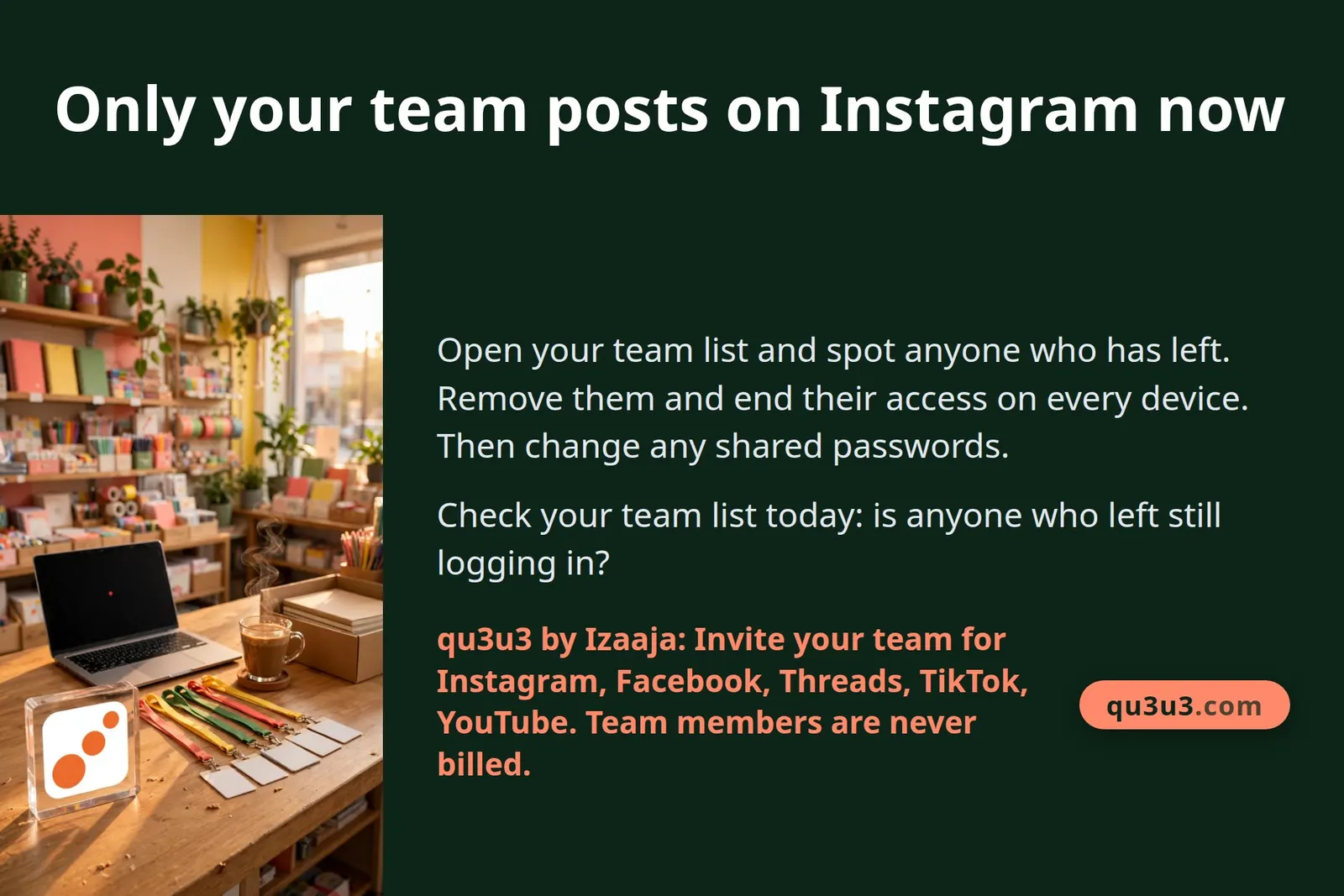
The first place to look is the security area of your account settings. There you can usually see where your account is logged in and log out of any device you do not recognise. Go through the list slowly. A phone you sold last year, a tablet at the old stall, or a laptop that belonged to a former helper should not still be on it. After you log out the old devices, change your password. A new password means anyone who saved the old one can no longer get back in. If you turned on two-step login, check that the phone number or app linked to it is yours and not someone who has left.
How to remove Instagram access from someone without a fight
Sometimes the person who leaves is a friend or family member, and the conversation feels awkward. Keep it simple and practical. Tell them you are tidying up the shop accounts and changing passwords for everyone. That way it is a routine, not a judgement about them. If the person was added as a partner or helper with their own login, remove them from that list instead of only changing the password. If they used the shared main login, then changing the password and logging out all other devices is the way to go.
Three steps to keep your account safe
Step 1 — Write down every person who can log in to each of your social media accounts today. Include part-timers, relatives and agencies. Many shop owners are surprised by how long this list is. Step 2 — Cross out everyone who no longer helps you. For each of them, remove their access, log out the devices they used, and change any password they knew. Step 3 — Put a reminder in your calendar to repeat this every three months, and every time someone stops working with you. A ten-minute check is far easier than fixing a mess after a wrong post goes out.
Stop sharing one password
The real root of the problem is one password passed around in a chat group. Once a password is shared, you lose track of who has it and where it is saved. The safer habit is to give each helper their own login wherever the platform allows it, so you can remove one person without disturbing everyone else. When each person has their own access, you also see who did what. If a caption has a typo or a reply sounds rude, you know who to talk to. And when someone leaves, you remove only them, while the rest of the team keeps working without a new password to learn.
What to do after a person leaves
On the same day, remove their access, log out their devices, and change the shared password if there was one. Then quickly scroll through recent posts and messages to make sure nothing was changed or deleted. Finally, tell the remaining team that the access list has been updated so nobody is confused when an old login stops working. Doing these few things consistently keeps your shop's social media in your hands, no matter how often your team changes.
The limits
Settings names differ by app version and device; follow the security section shown in your own account.
Guides by platform: Instagram scheduler — Schedule Instagram Feed posts, Carousels of 2–10 media, Reels with cover selection, and Stories from your phone or computer, free for every account.